How to Add Pixels to a Page in Atomicat
Pixels help track visitor activity, leads, purchases, conversions, and advertising performance. In Atomicat, you can add common pixels from the Pixel tab or paste complete tracking scripts from the Codes tab.
This guide starts with Facebook Pixel because it is the most common beginner setup, then covers UTMify pixels and custom scripts.
Before You Start
Make sure you have the tracking details from the platform you want to connect.
You may need:
- A Meta Pixel ID.
- A Business Manager ID, if your team uses one.
- An Ad Account ID, if your team uses one.
- A Conversions API token, if you are using Meta CAPI.
- A UTMify pixel ID.
- A complete script for GTM, Google Analytics, TikTok Pixel, Hotjar, Microsoft Clarity, or another tool.
Always publish the page after adding or changing pixels. Tracking changes do not affect the live page until the page is published again.
Method 1: Add a Facebook Meta Pixel
Use this method when you want to track page views, leads, purchases, and conversion events directly in Meta Ads Manager.
- Open the page in the Atomicat Builder.
- Click Settings from the left sidebar.
- Open the Pixel tab.
- Expand the Facebook section.
- Fill in the available fields:
- Name: a clear name to identify the pixel.
- Business Manager (BM): the Business Manager ID, if provided.
- Ad Account (CA): the Ad Account ID, if provided.
- Pixel ID: the Meta Pixel ID from Meta Events Manager.
- Conversions API Token: the token from Meta Events Manager, if available.
- Click Save.
- Publish the page.
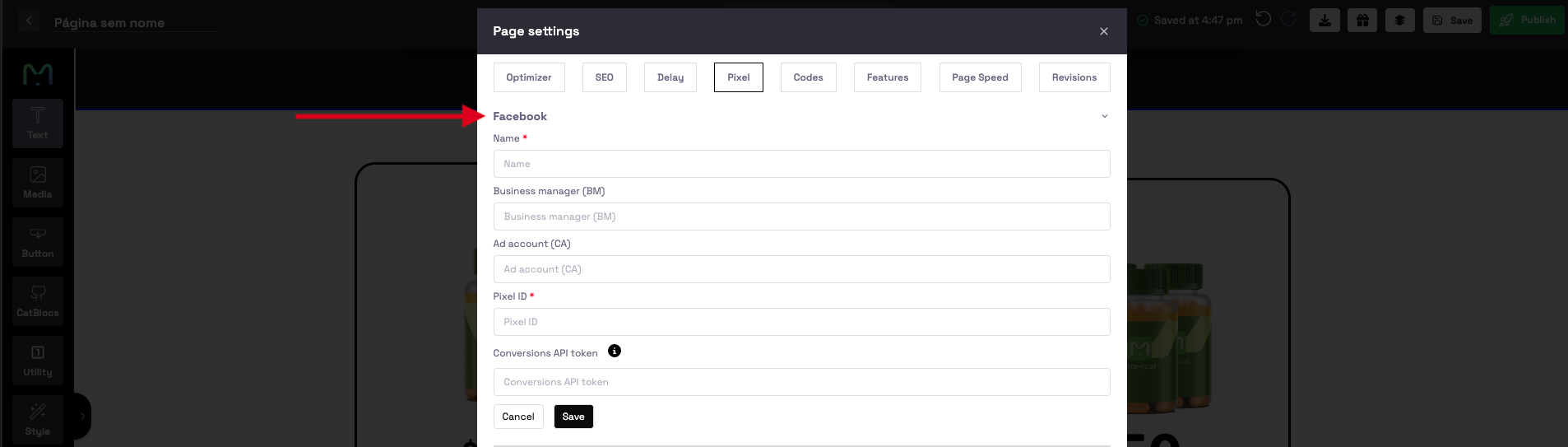
After publishing, the Facebook Pixel starts sending tracking data to Meta.
Method 2: Add UTMify Pixels
Use this method when you use UTMify for campaign tracking, attribution, Meta tracking, or Google tracking.
- Open the page in the Atomicat Builder.
- Click Settings.
- Open the Pixel tab.
- Scroll to the UTMify section.
- Under Add New Pixel (Meta Facebook or Google), enter:
- Name: the pixel name.
- Pixel ID: the pixel ID provided by UTMify or your tracking setup.
- Pixel Type: choose Meta Facebook or Google.
- Click Add Pixel.
- Click Save Changes.
- Publish the page.
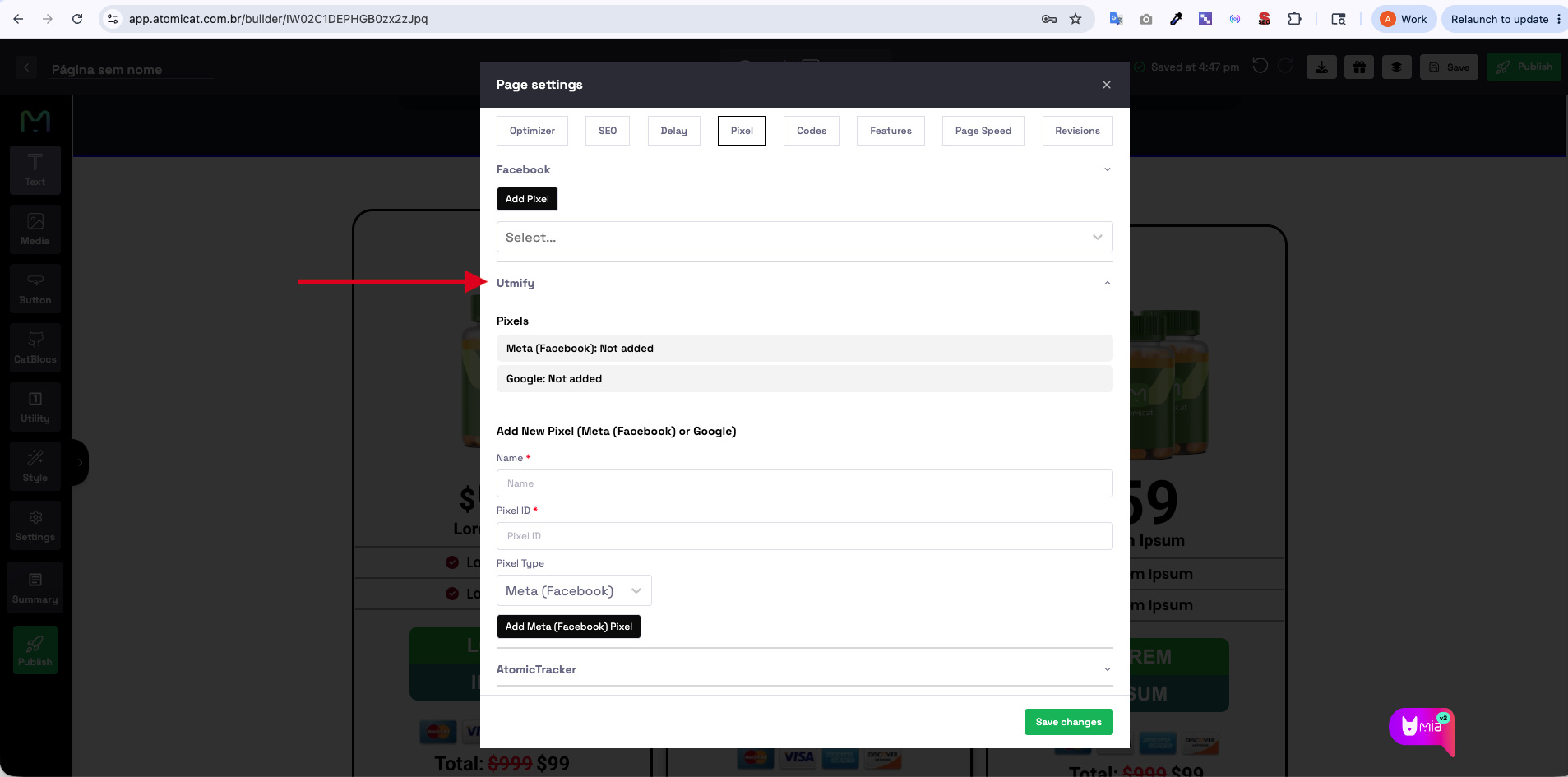
UTMify Meta pixels can be used for leads, purchases, retargeting, and campaign tracking. UTMify Google pixels can be used for Google Ads, conversion tracking, and analytics integrations.
Method 3: Add Custom Tracking Scripts
Use this method when the tracking platform gives you a full script instead of only a Pixel ID.
Common examples include:
- Google Tag Manager.
- Google Analytics.
- TikTok Pixel.
- Pinterest Pixel.
- Microsoft Clarity.
- Hotjar.
- Other third-party tracking tools.
- Open the page in the Atomicat Builder.
- Click Settings.
- Open the Codes tab.
- Paste the complete script in the correct section.
- Click Save Changes.
- Publish the page.
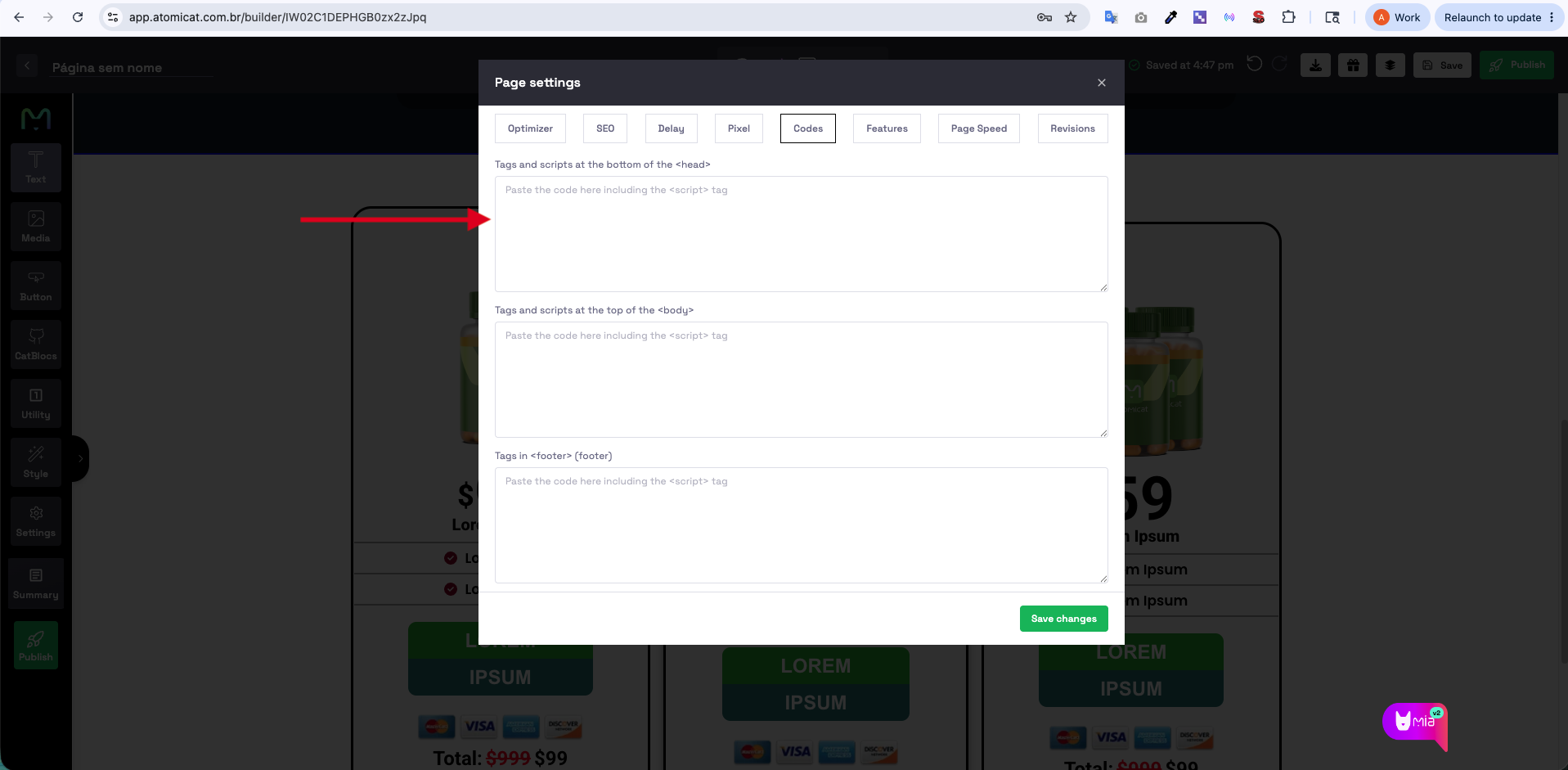
Where to Place Custom Scripts
Head Section
Use Tags and scripts at the bottom of the <head> for:
- Meta Pixel scripts.
- Google Analytics.
- Google Tag Manager head script.
- Microsoft Clarity.
- Most tracking scripts that need to load early.
Body Section
Use Tags and scripts at the top of the <body> for:
- GTM noscript code.
- Tracking snippets that specifically mention the top of the body.
- Custom scripts that must run immediately after the body opens.
Footer Section
Use Tags in <footer> for:
- Chat widgets.
- Heatmaps.
- Additional scripts that do not need to load early.
When using custom code, paste the full snippet exactly as the provider gives it, including the <script> tags when they are part of the snippet.
Verification
After publishing, verify that tracking is working.
For Facebook Pixel, use Meta Pixel Helper and check that:
- The pixel is detected.
- The correct Pixel ID appears.
- Events are firing correctly.
For Google tracking, use Google Tag Assistant or Google Analytics realtime reports and check that:
- Visits are being recorded.
- Conversion events are firing, if configured.
- The correct tag or measurement ID appears.
Troubleshooting
Pixel Is Not Tracking
Check that:
- The correct Pixel ID was entered.
- The page was saved and published after adding the pixel.
- Browser cache was cleared before testing.
- Ad blockers or privacy extensions are not blocking the tracking request.
Script Is Not Working
Check that:
- The complete script was pasted.
- The script was added to the correct section.
- No part of the snippet was accidentally removed.
- The tracking provider does not require an additional verification step.
Events Are Not Showing in Facebook or Google
Verify that:
- The pixel is active in the advertising platform.
- Events are configured correctly.
- The correct page URL is being tested.
- Browser extensions are not blocking the tracking tools.
Outcome
After setup and publishing:
- Visitor activity can be tracked.
- Leads, purchases, and conversion events can be recorded.
- Advertising campaigns can be measured more accurately.
- Marketing data becomes available for optimization.
Related Docs
FAQ
Should beginners use the Pixel tab or the Codes tab?
Use the Pixel tab when you only need to add a Facebook Pixel or UTMify pixel. Use the Codes tab when the platform gives you a complete script.
Do I need a Conversions API token for Facebook Pixel?
It is optional, but recommended when your Meta setup uses Conversions API. If you only have a Pixel ID, you can start with that.
Why is my pixel not showing after I save it?
The page must be published after pixel changes. Also clear cache or test in an incognito window if the browser is showing an older version.
Can I add Google Tag Manager in Atomicat?
Yes. Paste the GTM head script in the head field and the noscript code in the body field inside the Codes tab.